Table of Contents
Calm Partner SSO Integration
Partners can integrate with Calm through an IDP initiated flow to provision their users with a Calm subscription. The minimum requirements are a SAML 2.0 request containing a unique SubjectNameId to identify a user in the partner’s system (a “partner user”).
Each partner user is able to activate a single Calm subscription. Once activated, users will have access to the Calm app without additional onboarding steps.
Calm’s B2B Engineering Team will support engineering efforts during onboarding, testing and push to production.
How does the integration work?
Calm’s B2B Engineering team will set up an IDP configuration and provide the Partner with the resulting metadata.xml file. This file will contain the Assertion Consumer Service URL and the Audience URI required to configure the SAML request. Calm will also provide the URL of our fsso application to use as the Target or RelayState.
To complete the IDP configuration Calm will need the following specifics from the Partner (these are often included in the SAML request):
- IdP Issuer URI - the unique identifier of the IdP
- IdP Single Sign-On URL - login url to the Partner SSO system
- IdP Signature Certificate - the The SAML certificate
When the configuration is complete and a SAML request is authenticated the Calm API will redirect the user to a Calm.com landing page where they are prompted to login to an existing Calm account or create a new Calm account with the email and password of choice.
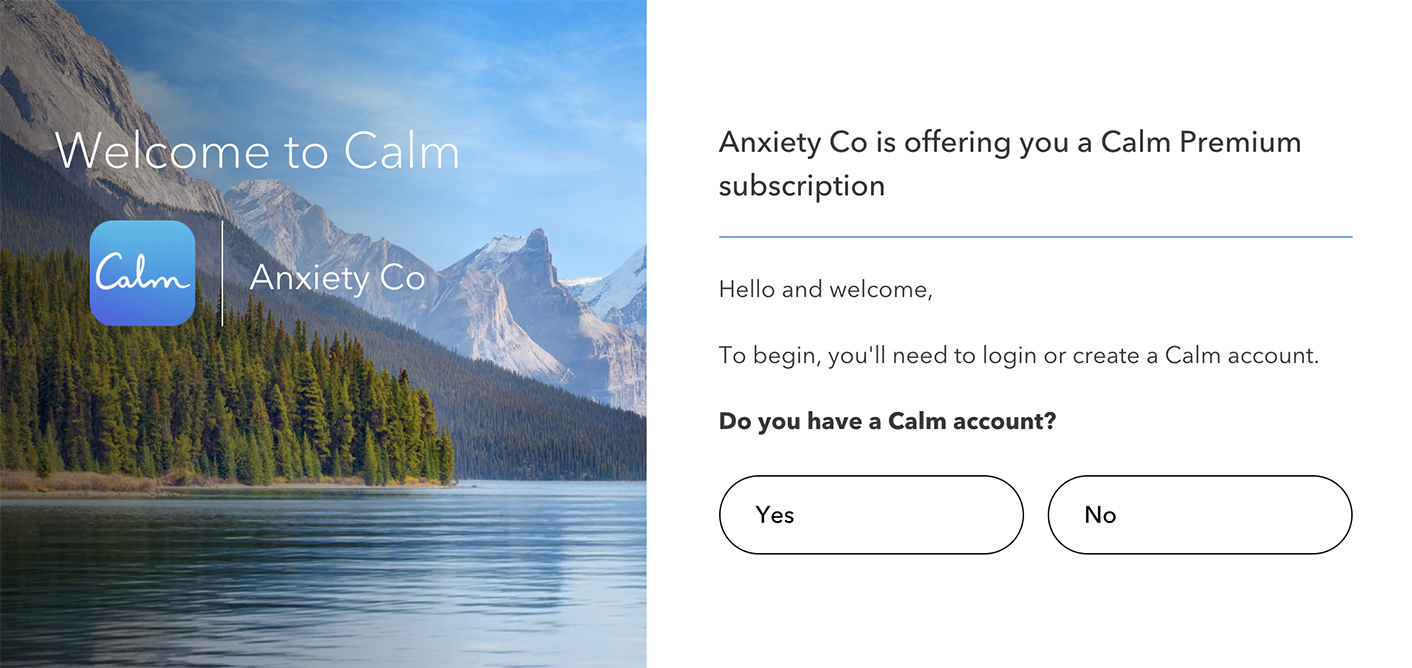
After login or signup, the user will have activated their Calm subscription and have access to Calm through our Mobile Apps or at Calm.com.
Troubleshooting
Calm B2B Engineering has integrated with many partners using a variety of SSO Architectures (Azure, Shibboleth, Okta, Microsoft ADFS). We’ve encountered slight variations in each architecture which have surfaced some integration issues and possible resolutions.
Calm Okta prompting for Username / Password
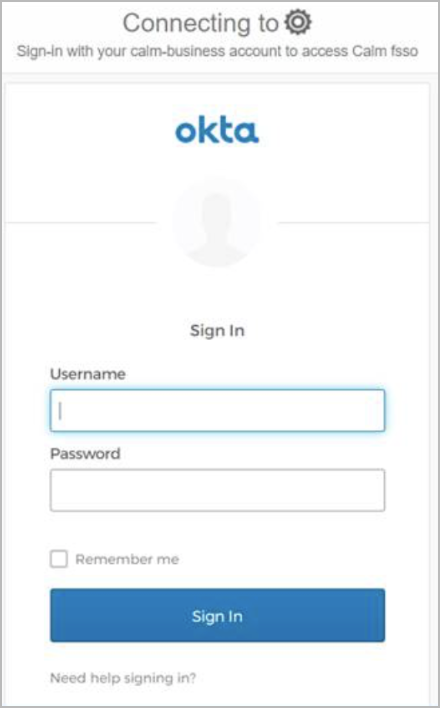
After making a SAML request to Calm’s fsso Application, this screen indicates that we’re having an issue. This may be due to the
SubjectNameIdmapping.Calm Okta login successful, but requires tile click to go to landing page
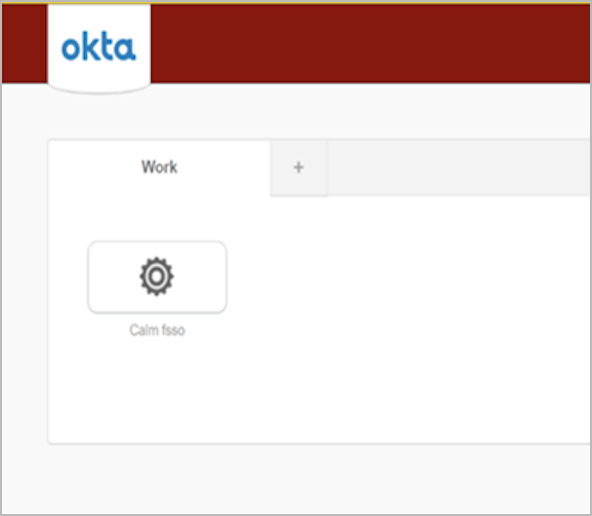
After making a SAML request to Calm’s fsso Application, this screen indicates that the
RelayStateorTargeturl is not specified in the SAML request.SAML Tracer
To aid in debugging, install the saml-tracer chrome extension.
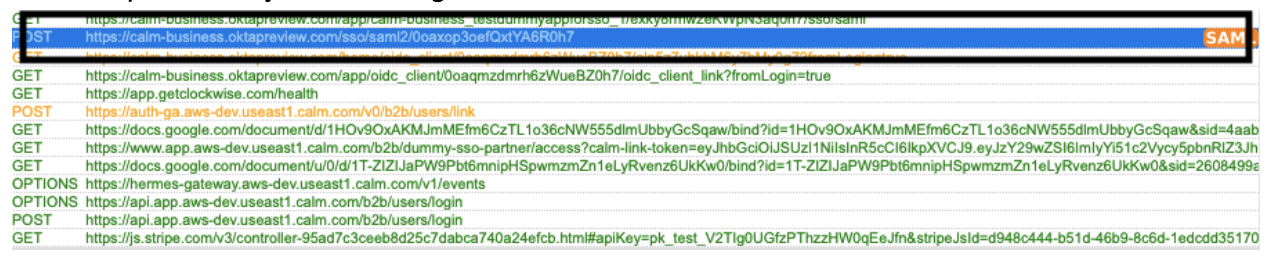
Verify Calm’s SSO URL is set up correctly by locating the SAML response of the POST request to the AssertionConsumerService Location provided by Calm through metadata.xml
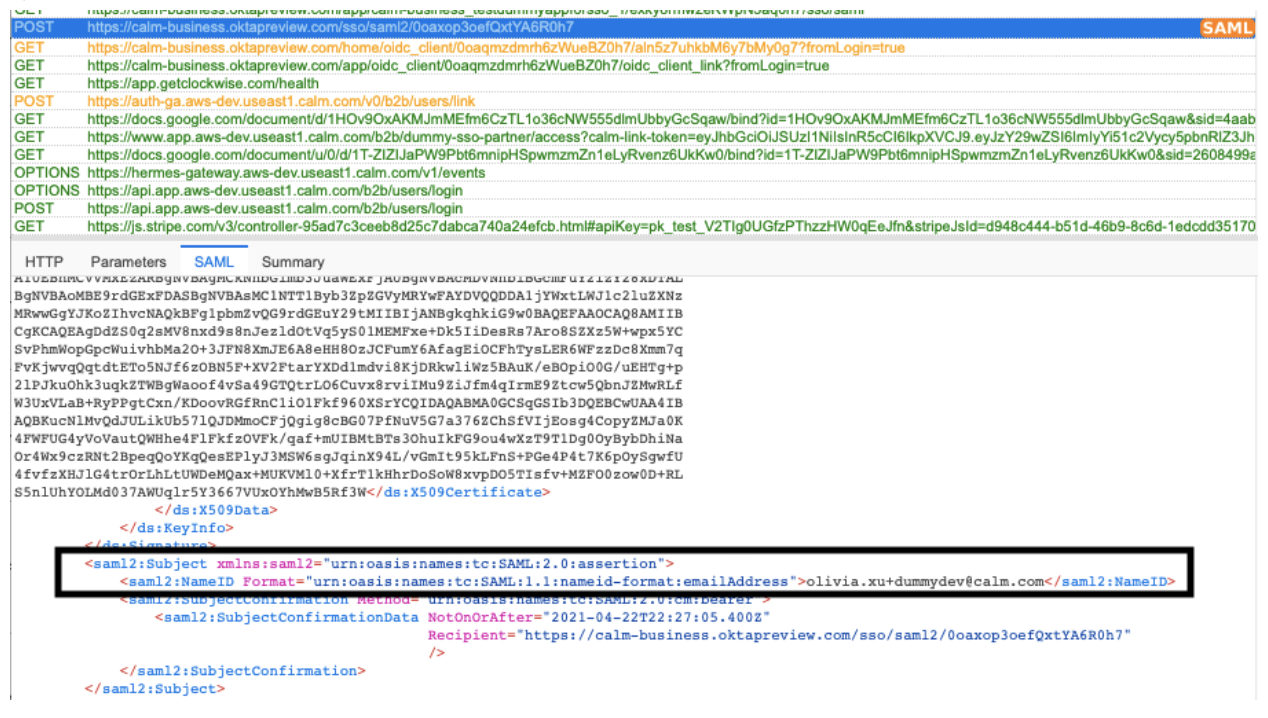
Make sure NameId is set up correctly and matches the unique user identifier in your system
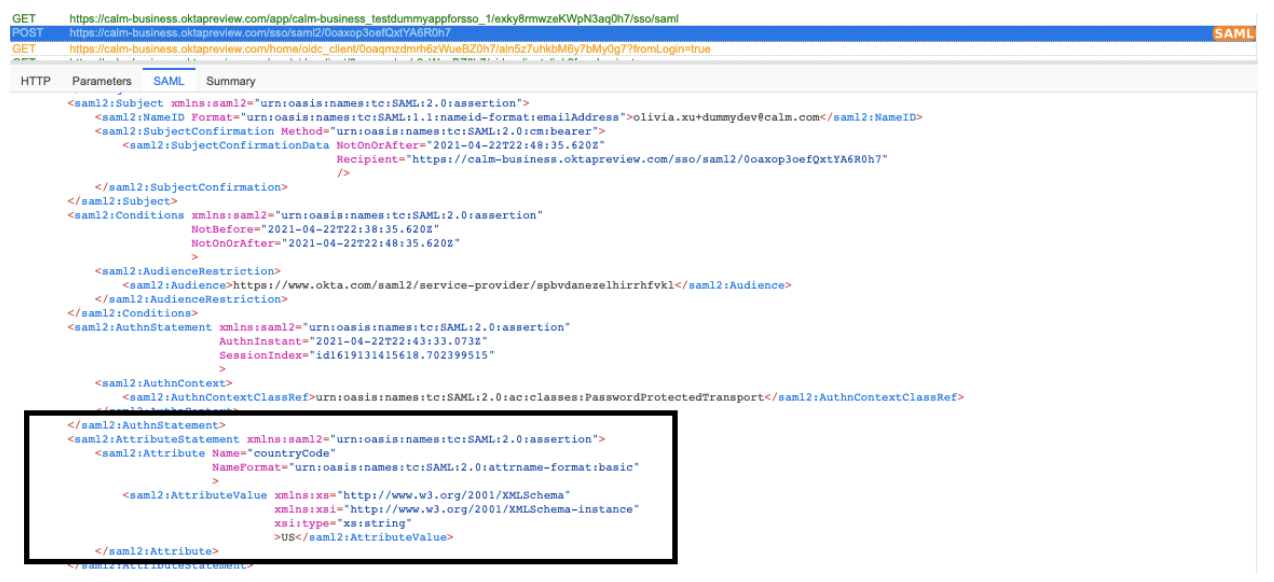
Make sure no irrelevant attributes are set through SAML response. For attributes sent to Calm, please use the short name (attrname-format: basic instead of uri for example) as in the screenshot.
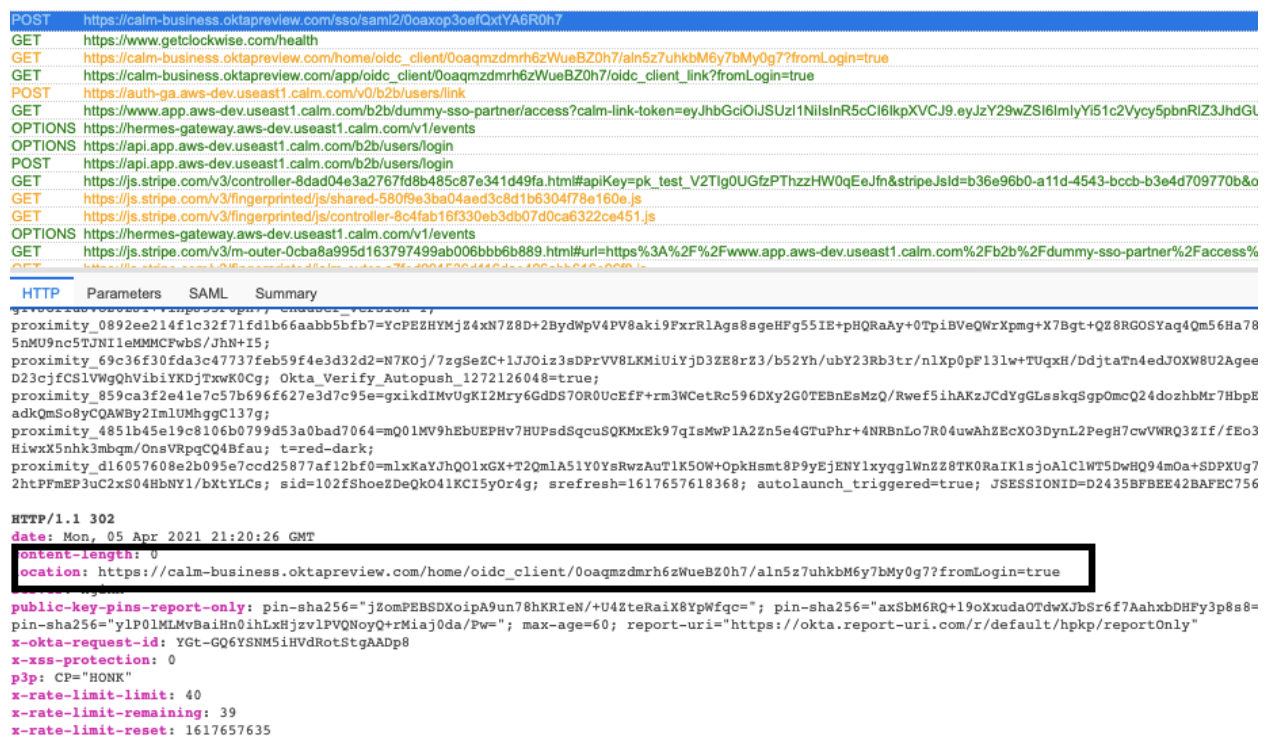
If the Okta logs are showing success but users land on Calm’s Okta page instead of the Calm sign up page, please double check that the relayState URL/embed link is set up correctly. (more info on relayState URL)
You can double check the response of the POST request to Calm’s IdP’s Assertion Consumer Service URL. It should match the relayState URL/embed link of the Calm fsso app. See below.
Issue: Not Found Error

If you encounter this error after navigating to the app through your sso. Please double check your Single Sign on URL and Audience URI/Entity ID.
- The Single Sign on URL should have the domain calm-forbusiness.okta.com
- The Audience URI/Entity ID should have the domain okta.com.
Issue: Calm Subscribe Error Page
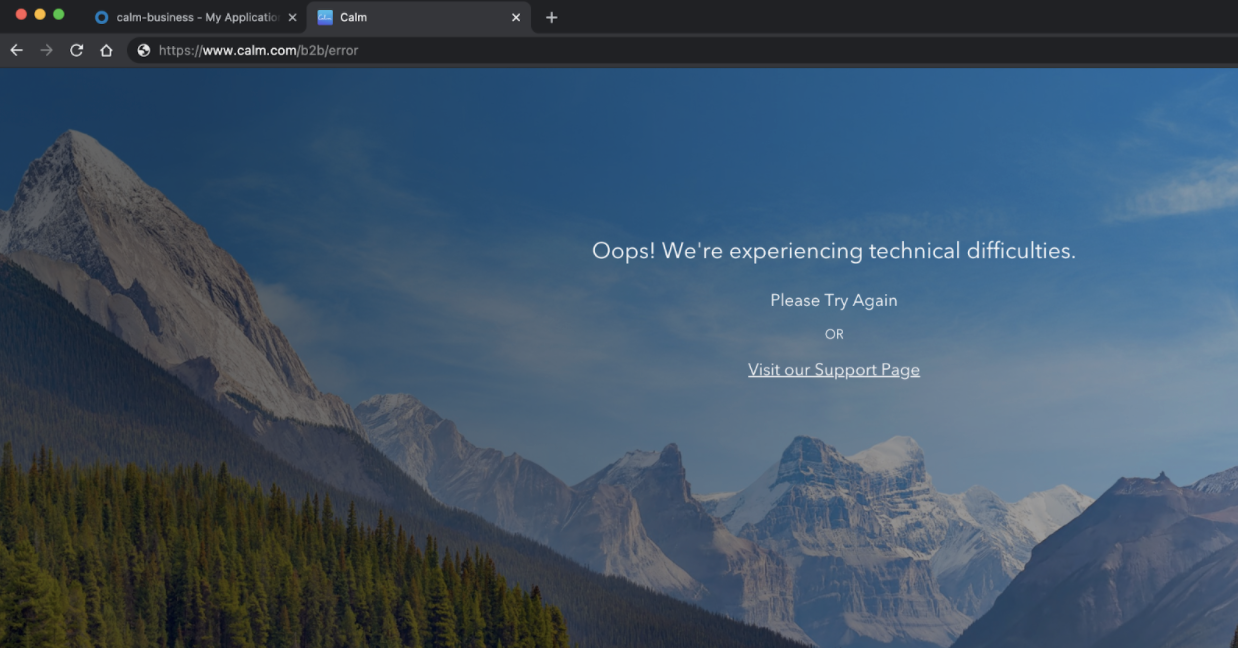
Please check with your Calm account manager to verify that:
- The correct SAML Certificate was properly uploaded
- The correct PartnerID is being passed
If none of the above apply and you’re still experiencing an integration issue, please reach out to your Calm Account Manager.